

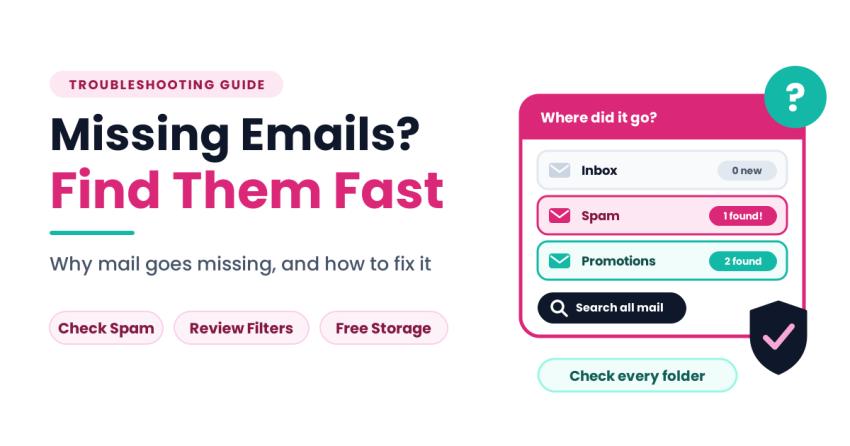
You are waiting for a confirmation, a reply or a verification code, and nothing shows up. You refresh the page, check again and start to wonder whether the message was ever sent at all.
Missing email is one of the most common and most confusing inbox problems, because the cause can sit in so many places: the sender, the internet, your filters, your storage or the account itself. This guide walks through each possibility in a sensible order, so you can find the message or fix whatever is blocking it.
Why Emails Go Missing
Messages rarely vanish into thin air. In nearly every case, one of these explanations applies:
- The sender made a mistake: A typo in your address means it was never going to reach you.
- The message landed in another folder: Spam, promotions, updates and trash all hide mail.
- A filter or rule intercepted it: An old setting may be archiving, labelling, or deleting messages.
- Your storage is full: A full account can reject incoming mail.
- A sync problem is hiding it: The message may be in your account but not showing on your device.
- A delivery delay or outage: Servers occasionally lag or fail.
- The account has a security issue: Unfamiliar rules or forwarding may point to unauthorized access.
Working through these one at a time is faster than guessing.
Step 1: Confirm the Basics
Start with the simple checks that solve a surprising number of cases.
- Check your internet connection: Open another site or app.
- Refresh the inbox or restart the app: A stale view can hide new mail.
- Try another device or browser: If the message appears there, the first device has a sync or display issue.
- Wait a few minutes: Delivery is usually instant but can occasionally take longer.
- Check that you are signed into the right account: With several addresses, it is easy to look in the wrong inbox.
Step 2: Ask the Sender to Check
Sometimes the problem is on the other end. Ask the sender to confirm a few things:
- Is your address spelled correctly? One wrong character is enough to send mail elsewhere.
- Did they receive a bounce-back or error message? That tells you where the fault lies.
- Did the message include a very large attachment? Large files can fail to deliver.
- Are you in their saved contacts with the right address? Old or duplicate entries can cause misdirected mail.
A quick reply from the sender often solves the mystery within minutes.
Step 3: Search Everywhere, Not Just the Inbox
A message you cannot see may be sitting somewhere unexpected. Look in these places:
- Spam: Legitimate mail is sometimes flagged by mistake.
- Promotions, Social and Updates tabs: Automated categories can hide important messages.
- Trash: An accidental deletion or an old rule may have put it there.
- All Mail or Archive: Messages removed from the inbox but not deleted live here.
- Other labels: A filter may have applied a label that skips the inbox.
Use search with the sender’s name, a subject word or a rough date. Searching across all mail is far quicker than scrolling.
Step 4: Check Your Filters and Forwarding
Old rules are one of the most common hidden causes. A filter you created years ago may still be silently moving, archiving or deleting certain messages.
- Open your filter and blocked-address settings.
- Look for rules that match the missing sender or subject.
- Check for rules that delete, skip the inbox or mark as read.
- Review forwarding settings, since a forwarding rule might be sending messages elsewhere and removing them from your inbox.
- Remove or edit anything you no longer need.
If you find rules you did not create, treat that as a warning sign and secure your account straight away.
Step 5: Check Your Storage
A full account is a classic cause of missing mail. When storage reaches its limit, new messages may be rejected, and the sender may receive an error.
To check and fix it:
- Look at your total storage, since it is usually shared across email, files and photos.
- Search for large attachments and delete what you no longer need.
- Empty spam and trash, because deleted items often still count until removed.
- Move important files to separate storage and delete the email copies.
Once there is free space, new mail should begin arriving again.
Step 6: Look at Sync Settings and Device Issues
Sometimes the message is in your account, but your device is not showing it. This is common on phones and email apps.
- Make sure sync is turned on for the account.
- Allow background data and notifications for the app.
- Check battery-saving modes, which can pause syncing.
- Update the app and the operating system.
- Clear the app’s cache, which removes temporary files without deleting messages.
- Remove and re-add the account if nothing else works, after you have confirmed your password.
Step 7: Check for Security Problems
Missing mail can sometimes signal that someone else has access to your account. Watch for these warning signs:
- Filters or forwarding rules you did not create
- Messages marked as read that you never opened
- Sent mail you do not recognize
- Sign-in alerts from unfamiliar devices or places
- Password reset emails you did not request
If any of these apply, act quickly:
- Change your password from a device you trust.
- Turn on two-step verification.
- Review recent activity and connected devices, and remove anything unfamiliar.
- Delete suspicious filters and forwarding rules.
- Update your recovery phone number and address.
Step 8: Protect Your Mail Before Making Big Changes
Several of the fixes above, such as deleting large amounts of mail to free space, clearing filters or removing and re-adding an account, carry a small risk. A mistaken deletion or a lockout can leave you without access to messages you still need.
That is why it is wise to keep an independent copy of your data. A solution such as the SysTools Gmail Email Backup Tool can save your emails, attachments and related account data offline, so your important information remains available even if something goes wrong with the original account. It also protects you against hacks, accidental deletion and suspensions, turning a stressful emergency into a manageable inconvenience.
A few habits make any backup routine more dependable:
- Back up on a schedule: Regular backups beat occasional good intentions.
- Include attachments and contacts: The files and the people matter as much as the text.
- Test your copy: Open a few saved items to confirm they work.
- Store it separately: Keep a copy somewhere other than your main device.
Watch Out for Fake “Missing Mail” Messages
Scammers take advantage of worry. While you are chasing missing mail, you may receive messages claiming that your mailbox is suspended, your messages are on hold or your account needs urgent verification.
- Never click links in unexpected warnings. Go to the official website directly.
- Do not share passwords or verification codes with anyone, including people claiming to be support.
- Be wary of anyone who contacts you first offering to recover your messages.
- Check the sender’s real address, not only the display name.
- Use a strong, unique password and keep two-step verification on.
A Simple Prevention Routine
A few small habits make missing mail rare:
- Weekly: Check spam and promotions for anything misplaced, and empty trash.
- Monthly: Review your storage, filters and forwarding settings, and confirm your latest backup ran properly.
- Quarterly: Update passwords, review connected devices and clear out apps you no longer use.
- Yearly: Confirm that your recovery details are current.
Common Mistakes to Avoid
- Assuming the sender never wrote before checking spam and other folders
- Ignoring storage warnings until new mail is rejected
- Leaving old filters running for years
- Clicking links in unexpected “mailbox suspended” messages
- Deleting in bulk or re-adding an account without a separate copy of your data
- Skipping updates on phones and apps
Final Thoughts
Missing email is frustrating, but it almost always has a findable cause. Confirm the basics, ask the sender to check, search everywhere, review your filters, free up storage, check sync settings, watch for security warnings and keep an independent copy of your data before making big changes.
You do not have to do everything at once. Next time a message goes missing, start with the simplest checks and work down the list one step at a time. Most of the time, the message turns up in a few minutes, and the rest of the time, you will know exactly where the problem lies.