

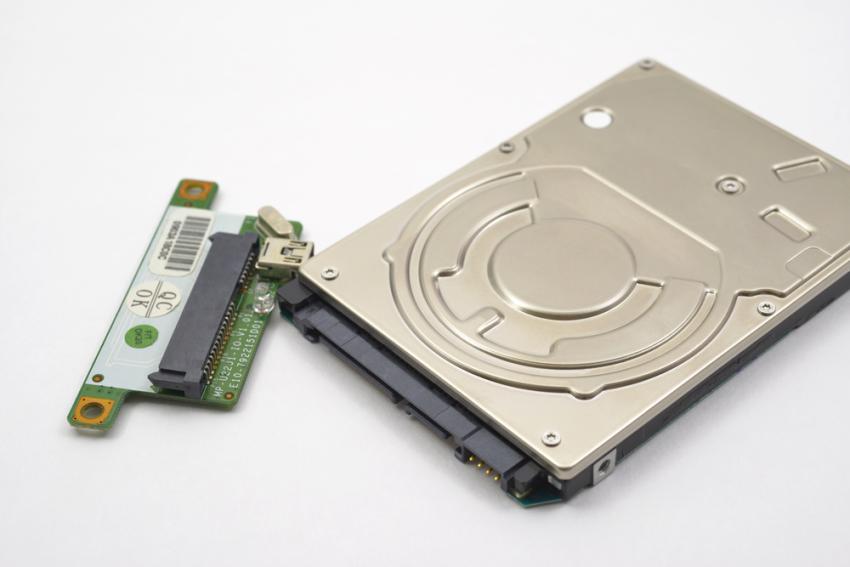
Losing files from a hard drive can happen for many reasons. You may accidentally delete important files, format the wrong partition, lose access to a corrupted drive, or suddenly find that an external HDD is not opening. In such situations, choosing the best hard drive recovery software depends on what caused the data loss, the condition of the drive, and the type of files you need to recover.
Not every recovery tool works equally well in every situation. Some are designed for simple deleted-file recovery, while others can scan formatted, RAW, corrupted, or inaccessible partitions. Free tools can also be useful, but they may require more technical knowledge or have fewer features.
This guide explains what to look for when choosing the best hard drive recovery software, which recovery methods are suitable for different situations, and when software recovery may not be the right option.
How Does Hard Drive Recovery Software Work?
When a file is deleted, the data is not always immediately erased from the hard drive. In many file systems, the operating system removes or changes the reference to the file and marks the space as available for future use.
This means recovery software may be able to find information that remains in that space.
A typical recovery process looks like this:
The software detects the selected hard drive.
It examines the file system and available storage areas.
It searches for deleted or lost file information.
It builds a list of potentially recoverable files.
You preview the results when the software supports preview.
You save the recovered files to another storage location.
Microsoft also recommends minimizing computer use after file deletion because new activity can overwrite the free space where deleted data may still exist. This is why installing recovery software on the affected drive is a bad idea. New data written to that drive can reduce the chances of recovery.
What Should You Check Before Choosing Recovery Software?
The best hard drive recovery software should match your actual recovery situation instead of simply having the longest feature list. Here are the most important things to check.
1. Supported File Systems
Check whether the software supports the file system used by your hard drive.
Common Windows file systems include:
NTFS
FAT32
exFAT
If you are working with an older or Mac-formatted drive, additional file systems may be important.
2. Deleted and Formatted Data Recovery
Basic recovery software should be able to search for deleted files. More advanced tools may also support formatted partitions and lost or inaccessible volumes. This becomes especially useful when the drive still appears in Windows but the files are missing.
3. RAW Drive Recovery
A hard drive may sometimes appear as RAW instead of NTFS or another recognized file system.
This usually means Windows cannot properly understand the existing file-system structure. In such cases, normal File Explorer access may fail even though some data may still be recoverable. The best hard drive recovery software for this situation should provide a scan method designed for RAW or inaccessible partitions.
4. Preview Before Recovery
File preview is an important feature because a scan result alone does not prove that a file is usable. A preview lets you check whether the file content is still intact before saving it. This can save time, especially when a drive contains thousands of deleted files.
5. Recovery to Another Drive
A good recovery tool should allow you to save recovered data somewhere other than the source drive. For example:
- Affected HDD → Recovery Software → External HDD
Do not use:
- Affected HDD → Recovery Software → Same HDD
Saving recovered files to the original drive can overwrite other recoverable data.
Best Hard Drive Recovery Software Options in 2026
The right choice depends on your technical experience and the type of data loss.
SysTools Data Recovery Software
The Best Hard Drive Recovery Software is SysTools Hard Drive Recovery Wizard rated by users and experts and it is designed specifically for recovering data from internal and external hard drives. It supports recovery scenarios such as permanently deleted files, formatted drives, RAW partitions, corrupted file systems, and lost partitions. The product page also lists support for NTFS, FAT16, FAT32, and exFAT HDDs.
One useful feature is the ability to preview recoverable files before saving them. The software also uses read-only scanning, which is important because recovery software should avoid unnecessarily modifying the affected source drive. It can be a practical choice for users who want a graphical recovery process instead of working with command-line commands.
Windows File Recovery
Windows also provides Windows File Recovery, a command-line application available through the Microsoft Store.
It can attempt to recover deleted files from local storage devices, including internal drives, external hard drives, and USB devices. Microsoft provides Regular and Extensive recovery modes for different situations. However, it requires command-line commands, so it may feel difficult for users who are not comfortable with Command Prompt. For example, Microsoft uses a command structure similar to:
winfr source-drive: destination-drive: /mode
The source and destination drives should be different.
Recuva
Recuva is another well-known option for basic file recovery. It can be useful when files have been recently deleted and the drive itself is still working normally. Its simple interface makes it suitable for less complicated recovery situations. However, users should check the current version's supported features and limitations before depending on it for a serious recovery case.
PhotoRec and TestDisk
PhotoRec and TestDisk are popular free, open-source recovery utilities.
They can be powerful, but their interfaces and workflows are more technical than typical commercial recovery applications. They may therefore be better suited to experienced users who understand partitions, file systems, and command-line or text-based recovery workflows.
HDD vs. SSD: Does the Storage Type Matter?
Yes. The storage technology can affect recovery. Traditional HDDs store data magnetically on spinning platters. When a file is deleted, its data may remain on the disk until it is overwritten. SSDs work differently because they use flash memory and storage controllers. Features such as TRIM can make deleted-data recovery more difficult because blocks may be marked for cleanup.
This means the best hard drive recovery software for an HDD does not automatically guarantee the same recovery results from an SSD. If your lost files were stored on an SSD, stop using the drive as soon as possible and avoid unnecessary write operations.
Free vs. Paid Recovery Software
Free recovery software can be enough for simple cases, especially when you have accidentally deleted a few files. Paid software may make more sense when you need features such as:
Deep scanning
Formatted-drive recovery
RAW partition recovery
Lost partition recovery
File preview
Multiple scan methods
Easier graphical workflows
Technical support
Recovery from larger or more complicated data-loss situations
The best hard drive recovery software is not necessarily the most expensive one. The important question is whether it supports the specific problem you are facing. For example, paying for advanced software does not make a physically damaged hard drive safe to scan repeatedly.
When Should You Not Use Recovery Software?
Recovery software is mainly useful for logical data loss.
Logical problems include:
Accidental deletion
Formatting
Lost partitions
RAW partitions
Corrupted file systems
Missing files
Some inaccessible-volume problems
Physical problems are different.
Stop using the HDD and consider professional laboratory recovery if you notice:
Clicking or grinding sounds
Repeated spin-up and spin-down
Severe overheating
The drive disappears repeatedly
The drive is not detected at all
A damaged USB or power connector
Signs of mechanical failure
Repeated scanning of a physically failing HDD can make the situation worse.
Important Things to Do Before Recovery
Before running the best hard drive recovery software, follow these basic precautions:
Stop Using the Drive
Do not continue saving files, downloading programs, or installing updates on the affected HDD.
Do Not Format the Drive
If Windows displays a message such as “You need to format the disk before you can use it,” do not immediately click Format.
Formatting can change the drive structure and complicate recovery.
Avoid CHKDSK Until Your Data Is Safe
CHKDSK is designed to repair file-system problems, not to recover your important files. If the data is valuable, recovery should generally come before repair attempts.
Install Recovery Software on Another Drive
If the lost data is on drive D:, install the recovery application on drive C: or another unaffected storage device whenever possible. Save Recovered Files Somewhere Else Never save recovered files back to the same drive you are recovering from.
How to Choose the Right Recovery Tool
Choosing the best hard drive recovery software becomes easier when you answer five questions:
1. What happened?
Was the file deleted, was the drive formatted, or did the partition become RAW?
2. Is the drive detected?
If Windows can detect the drive, software recovery may be possible in many logical-loss cases.
3. Is the drive physically healthy?
Unusual sounds or repeated disconnections are warning signs.
4. What file system does it use?
Check whether the drive uses NTFS, FAT32, exFAT, or another supported system.
5. Where will you save the recovered files?
Always prepare a separate storage device with enough free space.
These questions are more useful than simply searching for a tool with the highest number of features.
Can Recovery Software Recover 100% of Lost Data?
No recovery software can honestly guarantee that every lost file will be recovered.
Recovery results depend on several factors, including:
How the data was lost
How much new data was written afterward
File-system damage
Bad sectors
Drive health
Whether the data was overwritten
HDD or SSD technology
The recovery method used
For deleted files, the chances can be better when recovery is started quickly and the drive is not used after deletion. Microsoft specifically warns that continued computer use can overwrite the free space containing deleted data. So, be careful with any software that promises guaranteed recovery regardless of the drive condition.
Final Verdict: Which Recovery Software Should You Choose?
The best hard drive recovery software depends on your specific situation. For a simple deleted-file case, a free recovery utility may be enough. For formatted, RAW, corrupted, or inaccessible HDDs, a dedicated recovery application with deep scanning and file preview can provide a more convenient workflow.
SysTools Hard Drive Recovery Software is one option for users looking for a dedicated graphical tool for internal and external HDD recovery. It supports deleted, formatted, RAW, corrupted, and inaccessible-data recovery scenarios and allows users to preview recoverable files before saving them.
The most important rule is to stop using the affected drive first. Recovery software works best when the lost data has not already been overwritten. If the drive is showing physical failure symptoms, avoid repeated software scans and consider professional recovery instead.
Frequently Asked Questions
Q1. What is the best hard drive recovery software for deleted files?
The best hard drive recovery software for deleted files should support deleted-file scanning, file preview, and recovery to another drive. For simple cases, free utilities may be sufficient, while dedicated software can provide a more guided recovery process.
Q2. Can I recover files from a formatted hard drive?
Yes, files may still be recoverable after formatting if the original data has not been overwritten and the file-system information can be reconstructed. Microsoft also provides an Extensive mode for certain formatted-drive recovery situations.
Q3. Is hard drive recovery software safe?
Recovery software can be safe when used correctly. The important rule is to avoid writing new data to the affected drive. Use read-only scanning when available and save recovered files to a different storage device.
Q4. Can recovery software fix a physically damaged hard drive?
No. The best hard drive recovery software cannot repair failed read/write heads, damaged platters, or serious mechanical problems. Physical failures usually require professional data recovery equipment.
Q5. Should I use free or paid recovery software?
Use free software when your case is simple and the tool provides the features you need. Consider paid software when you need deeper scans, formatted or RAW recovery, previews, or a simpler recovery workflow.
Q6. What should I do immediately after deleting important files?
Stop using the drive, do not install software on it, avoid formatting or unnecessary repair commands, and prepare a different drive for storing recovered files. Acting quickly can help reduce the chance of deleted data being overwritten.