

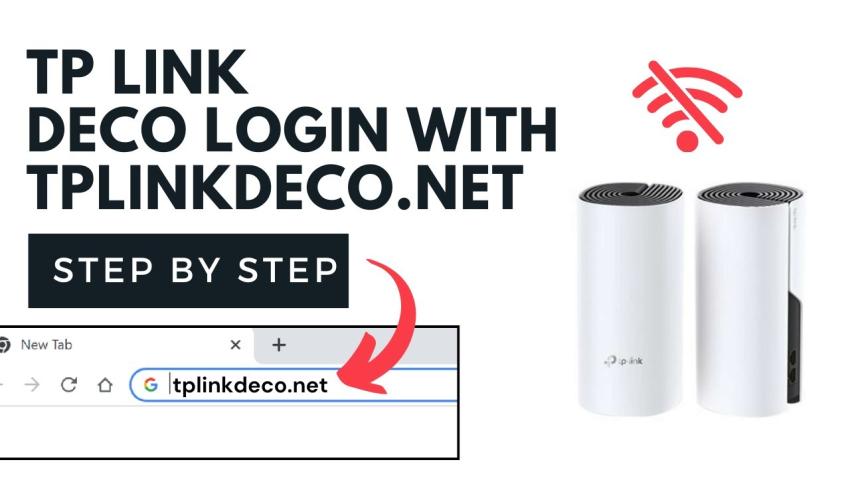
Accessing the Deco system is pretty easy and simple, you just need a connected computer with the Deco network and in a few steps, you are inside the interface.
Here, we will provide simple steps to access the tplinkdeco.net and how to complete the TP link Deco setup via Deco App.
Accessing the Tplinkdeco.net in Computer
tplinkdeco.net isn’t a “real” website. It’s not out on the internet. It’s a local address your Deco router serves up. If you’re not connected to your Deco network, it won’t load. Period.
First thing: make sure your computer is on the Wi-Fi (or wired to the Deco). If you’re on some other network (like your ISP’s modem or a neighbor’s Wi-Fi), forget it, won’t work.
If you’re connected and it still doesn’t show up, skip the fancy domain. Just punch in the default IP. For Deco, that’s usually 192.168.0.1. One of those should take you straight to the login page.
Still nothing? Try flushing DNS. Open Command Prompt and type: ipconfig /flushdns
Then reload tplinkdeco.net. Sometimes Windows caches garbage.
Another trick: check your DNS settings. If you’re forcing Google DNS (8.8.8.8) or Cloudflare (1.1.1.1), tplinkdeco.net might not resolve. Switch back to automatic or temporarily set it to “Obtain DNS automatically” and try again.
Last resort: if the Deco app works but tplinkdeco.net doesn’t, it could be firmware. TP-Link’s been leaning harder into the app and sometimes the browser side is half-baked. In that case… yeah, you’re stuck with the app.
Oh, and pro tip: if you ever forget the admin password, you’re not logging in no matter what address you hit. The only fix is a reset. Been there, done that.
TP-Link Deco Setup using Deco App
Download the Deco app. Don’t even bother trying to do it through a browser or whatever, the app is where all the action happens. It’s on iOS and Android. Once it’s installed, sign in (or create a TP-Link account). Yeah, you need the account. No skipping.
Next, plug in your first Deco unit. This is your “main” one (they call it the router in the setup).
Power it up, then connect it to your modem with the Ethernet cable. Give it a minute to boot.
Lights will blink and eventually settle—different Deco models have slightly different light colors, but the app will guide you.
Open the app, hit “Set Up a New Deco”, pick your model from the list, and just follow along.
The app does a decent job walking you step by step. It’ll ask for permissions like Bluetooth and location—that’s how it finds the Deco.
If it can’t find it right away, unplug/plug it back in. I had to do that once because mine just sat there blinking like an idiot.
Once the app connects, you’ll name your network and set a Wi-Fi password. This replaces whatever Wi-Fi you had before. just pick a name and password you’ll remember.
Now, adding extra Decos (the satellites). This part’s easy but kind of repetitive. You just place the extra unit where you want better coverage (hallway, upstairs, wherever), plug it in, and wait for the light.
In the app, hit “Add another Deco”, and it’ll scan and link them together. You might have to move it closer first if it doesn’t pair, then drag it back to where you actually want it.
After that, the app will run a quick check, and mesh Wi-Fi running. All your Decos show up in the app, and you can see devices connected, block people’s internet (fun when your kid won’t get off YouTube), set up parental controls
Troubleshooting Tips: Tplinkdeco.net Login
1. Make sure you’re on the Deco network.
Sounds obvious but it’s the first thing to check. If your phone/laptop is connected to some other Wi-Fi (like your neighbor’s open hotspot or your mobile data), the Deco login page won’t show up. You’ve got to be on the Deco itself.
2. Try the IP instead of the URL.
Sometimes the tplinkdeco.net shortcut just doesn’t resolve right. Punch this into your browser: 192.168.0.1. That’s the default IP for most Deco systems. If that doesn’t work, try 192.168.0.1. One of those usually gets you in.
3. Browser cache / DNS nonsense.
Clear your browser cache or just try another browser. Chrome gave me grief; Firefox loaded it instantly. Also, worth flushing DNS on Windows (ipconfig /flushdns in Command Prompt) or renewing your IP if things feel stuck.
4. Use the app.
Honestly, TP-Link really pushes you toward the Deco app. If the web login is driving you nuts, just grab the app from iOS/Android and sign in there. It’s usually smoother. But yeah, I get wanting the web version.
5. Check if the Deco is actually online.
Unplug, wait 10 seconds, plug it back in. Give it a minute. Sometimes the login page won’t show because the base unit itself is in some weird state.
6. Worst case: reset.
Let’s see how to reset deco, Hold the reset button (tiny pinhole on the bottom/back) for like 10 seconds until the LED flashes. Yeah, it’s a pain because you’ll have to set it up again, but if nothing else works, this clears out whatever glitch is blocking access.



