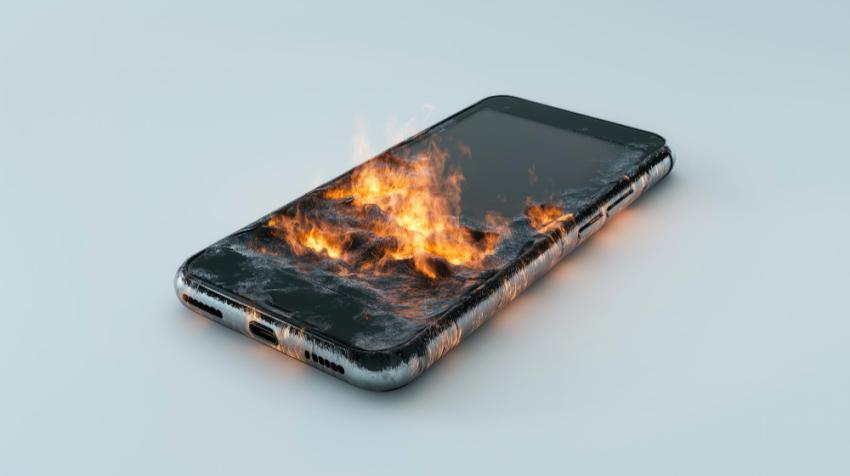
Samsung Galaxy smartphones are known for their powerful performance, impressive displays, and advanced features. However, like any electronic device, they can sometimes experience overheating problems. An overheating phone can affect battery life, slow down performance, and even cause long-term hardware damage if left unaddressed.
If your Samsung Galaxy device frequently becomes hot during normal use, don't panic. Understanding the causes and applying the right solutions can help keep your phone running efficiently.
Why Does a Samsung Galaxy Phone Overheat?
Overheating occurs when your device generates more heat than it can effectively dissipate. While some warmth during gaming, charging, or video streaming is normal, excessive heat may indicate an underlying issue.
Common causes include:
Running multiple apps simultaneously
Prolonged gaming sessions
High screen brightness
Background app activity
Software bugs or outdated firmware
Faulty charging accessories
Poor battery health
Exposure to direct sunlight or hot environments
Signs Your Samsung Galaxy Is Overheating
Watch for these warning signs:
Device feels unusually hot to the touch
Battery drains rapidly
Apps crash unexpectedly
Reduced performance or lag
Automatic brightness reduction
Charging slows down or stops
Overheating warning messages appear
Identifying these symptoms early can prevent more serious issues from developing.
Close Unused Apps
Many users leave multiple applications running in the background. These apps consume processing power and generate heat.
To close unused apps:
Open the Recent Apps screen.
Tap "Close All."
Restart your phone.
This simple step often reduces unnecessary CPU usage and lowers device temperature.
Update Your Software
Samsung regularly releases updates that improve performance, optimize battery efficiency, and fix software-related overheating issues.
To check for updates:
Open Settings.
Tap Software Update.
Select Download and Install.
Keeping your device updated ensures it benefits from the latest optimizations and security improvements.
Reduce Screen Brightness
The display is one of the largest power consumers on any smartphone. Running your screen at maximum brightness for extended periods can increase heat generation.
Try these adjustments:
Lower screen brightness manually.
Enable Adaptive Brightness.
Reduce screen timeout duration.
Use Dark Mode when available.
These settings can significantly decrease power consumption and heat output.
Remove Problematic Apps
Some poorly optimized applications continuously run background processes, causing excessive resource usage.
If overheating started after installing a new app:
Uninstall the app temporarily.
Monitor device temperature.
Check for app updates.
Apps that frequently consume high CPU resources may need to be replaced with better alternatives.
Avoid Using Your Phone While Charging
Using your Samsung Galaxy while charging increases workload and heat generation simultaneously.
To minimize overheating:
Avoid gaming during charging.
Limit video streaming while plugged in.
Use the device minimally until charging is complete.
This helps the battery charge more efficiently and safely.
Use Genuine Charging Accessories
Low-quality chargers and cables can cause inconsistent power delivery, leading to excessive heat.
Always use:
Official Samsung chargers
Certified replacement cables
Trusted third-party accessories
Quality charging equipment protects both battery health and overall device performance.
Disable Unnecessary Features
Features running continuously in the background can contribute to overheating.
Consider disabling:
Bluetooth when not in use
GPS location services
Mobile hotspot
NFC
Nearby device scanning
Turning off unused features reduces processor workload and conserves battery life.
Check Battery Health
An aging or damaged battery can generate excessive heat, especially during charging or heavy use.
Common battery-related symptoms include:
Rapid battery drain
Unexpected shutdowns
Swollen battery
Excessive warmth during normal tasks
If these signs appear, professional battery replacement may be necessary.
Clear Cache Files
Temporary system files can accumulate over time and affect performance.
To clear app cache:
Open Settings.
Tap Apps.
Select the desired app.
Tap Storage.
Choose Clear Cache.
Regular maintenance helps your Samsung Galaxy operate more efficiently.
Enable Device Care Features
Samsung includes built-in optimization tools designed to improve performance.
To access Device Care:
Open Settings.
Select Battery and Device Care.
Tap Optimize Now.
This feature automatically identifies issues affecting performance, battery life, and temperature management.
Avoid Extreme Environmental Conditions
External temperatures greatly impact smartphone performance.
Avoid:
Leaving your phone in a parked car
Direct sunlight exposure
Using the device outdoors during extreme heat
Placing it near heat sources
Keeping your device in a moderate environment helps prevent thermal stress.
Restart Your Device Regularly
A simple restart can resolve temporary software glitches and background processes that contribute to overheating.
Restarting your Samsung Galaxy at least once every few days can improve overall system stability and efficiency.
When to Seek Professional Repair
If your Samsung Galaxy continues overheating despite trying these solutions, there may be a hardware issue involving the battery, charging port, motherboard, or internal components.
Many users first research solutions online before visiting a trusted phone repair store in Orlando or a qualified repair professional in their area for a complete diagnostic evaluation.
Preventing Future Overheating Issues
To keep your Samsung Galaxy running smoothly:
Keep software updated
Use certified chargers
Avoid intensive multitasking
Remove unused apps
Monitor battery health
Limit gaming during charging
Protect the device from excessive heat
These habits can significantly reduce the likelihood of overheating problems.
Conclusion
Samsung Galaxy overheating issues can stem from software glitches, heavy app usage, battery problems, or environmental factors. Fortunately, most cases can be resolved through proper maintenance, software updates, and smart usage habits. By identifying the cause early and following the troubleshooting steps outlined above, you can improve performance, extend battery life, and keep your device operating safely for years to come.
Frequently Asked Questions
Why does my Samsung Galaxy get hot while charging?
Heat during charging is normal, but excessive heat may result from faulty chargers, battery issues, or intensive phone usage during charging.
Can overheating damage my Samsung phone?
Yes. Prolonged overheating can reduce battery lifespan, affect performance, and potentially damage internal components.
Does gaming cause Samsung Galaxy overheating?
High-performance games place heavy demands on the processor and graphics system, which naturally generates additional heat.
How can I cool down my Samsung phone quickly?
Close background apps, remove the charger, lower screen brightness, and place the device in a cool, shaded area.
Should I replace my battery if my Samsung phone overheats?
If the battery is old, swollen, or draining unusually fast, a replacement may help resolve persistent overheating issues.